Introduced in release 6.16
Original PDF found here
Disclaimer: This job aid was created using a demo insurance company with generic settings. Keep in mind that your screens may appear slightly different. Please refer to your specific carrier guidelines for proper claim and estimate settings.
Step 1
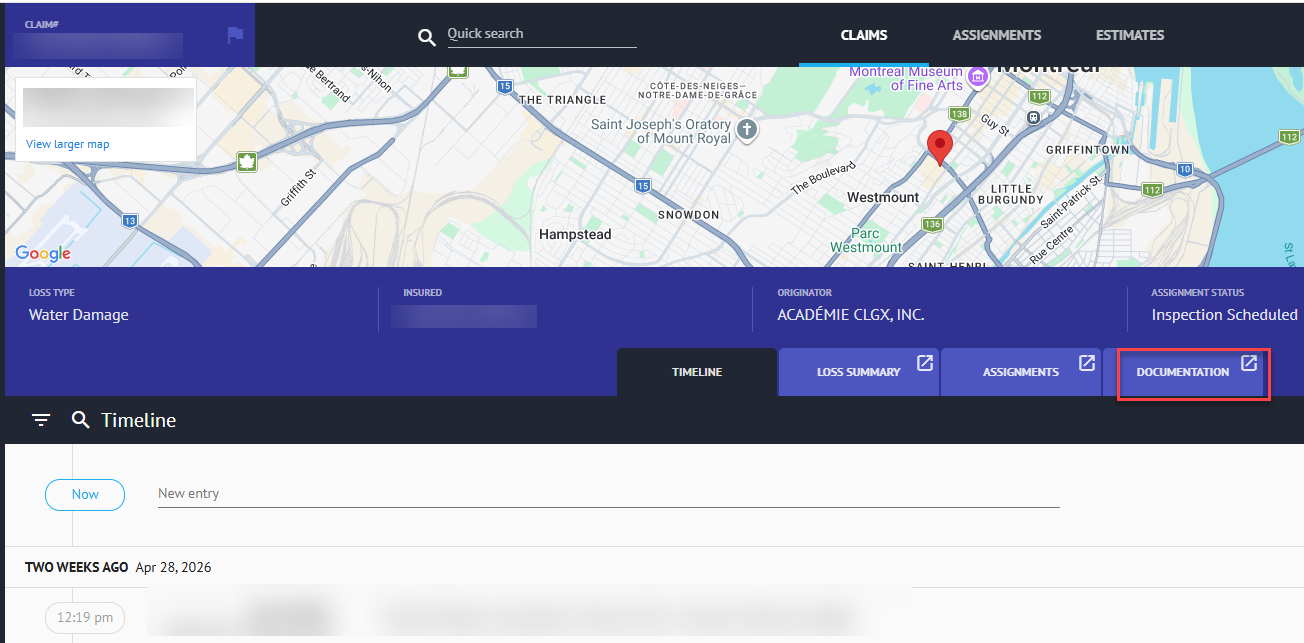
Within a claim in Claims Workspace, click on the Documentation tab to view available estimates to edit.
Step 2
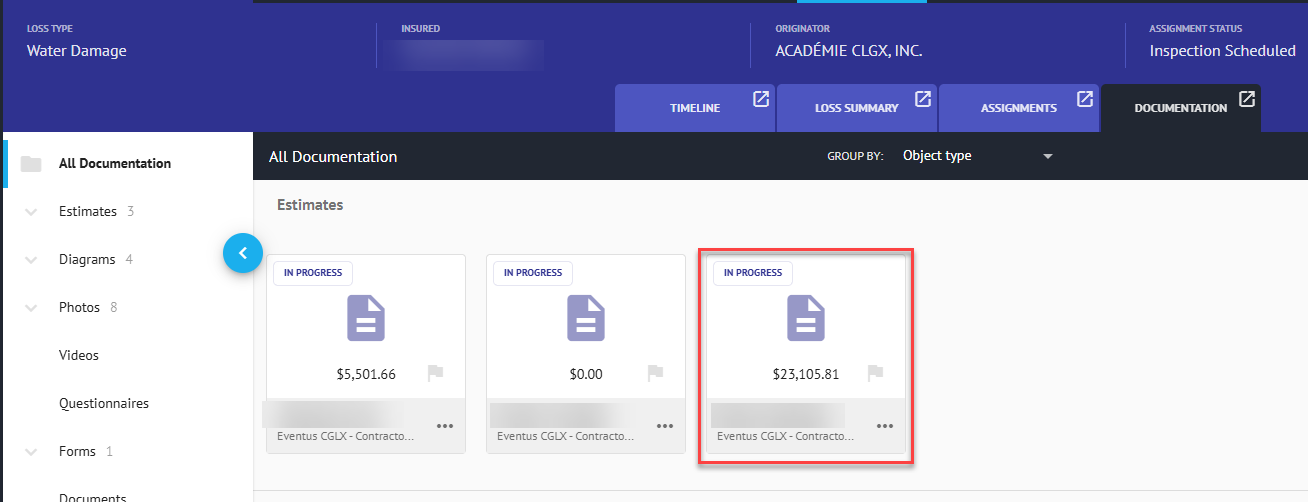
Open the estimate to edit by clicking on it from the Documentation page.
Step 3
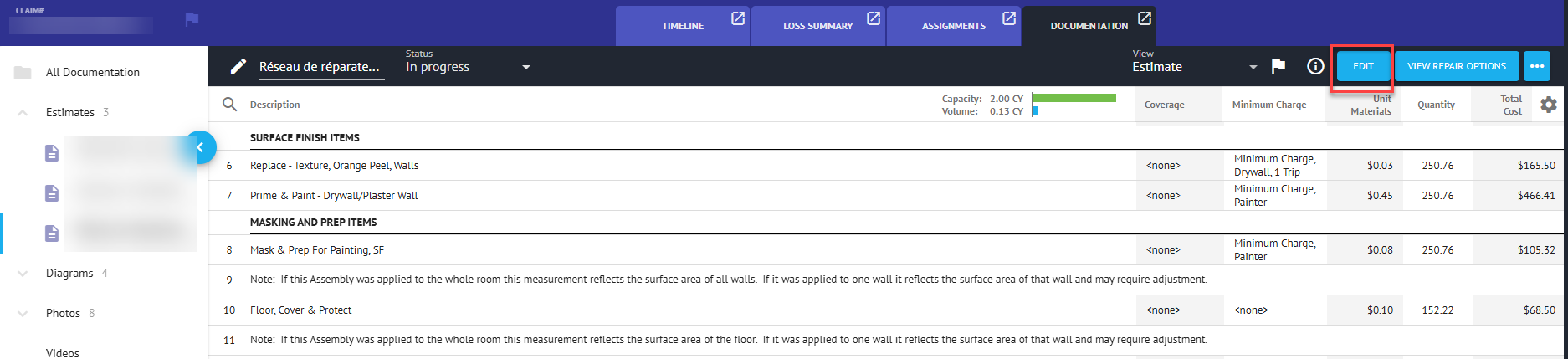
Within the Estimate view, click on 'Edit' to enter edit mode.
Step 4
Line-item editing may be done now from this view within the individual line items. Editable fields will highlight blue when scrolled over. If a field is not eligible for in-line editing, it will remain gray.
Note: The tab button may be used to navigate from editable field to editable field within one line item.

Step 5: Editing Fields
Text Field
To edit a text field, click anywhere in the text or highlight all the text with a double mouse click.
Proceed to edit the field as necessary.

Dropdown Field
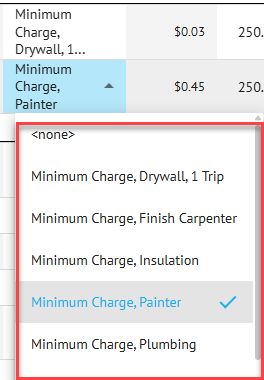
To edit a dropdown field, click anywhere on the field to be presented with the dropdown box of options.
Click on the option you wish to change it to.
Note: You may need to scroll to see additional available options.


Step 6
If editing is not complete, but you want to view the changes to the estimate subtotals or total, you may click on 'Apply Changes/Recalculate' above the column headers at the top of the estimate. The estimate will remain in Edit mode.

Step 7
Once edits are complete, click 'Save' to save the changes and exit Edit mode.
Note: Save will not present as an option if no changes have been made to the estimate. 
Cancellation: If you do not wish to save the changes you made, click 'Cancel'.

Was this article helpful?
That’s Great!
Thank you for your feedback
Sorry! We couldn't be helpful
Thank you for your feedback
Feedback sent
We appreciate your effort and will try to fix the article