This article explains how to update your company information in Claims Workspace™, including your company logo, address, and primary contact details. Only users with Administrator permissions can update company information. If you need to update user information instead (such as name, email, or password), refer to the article Create & Update User Accounts in Claims Workspace™.
What Information Can Be Updated?
From the Company Info page, administrators can update information such as:
- Company logo
- Company address
- Primary contact name
- Phone and fax number
- Email address
- Tax ID (optional & if applicable)
This information may be visible to other companies and users you collaborate with on claims.
How to Access Company Information
Standard Screen Layout
- Sign in to Claims Workspace™ as an administrator.
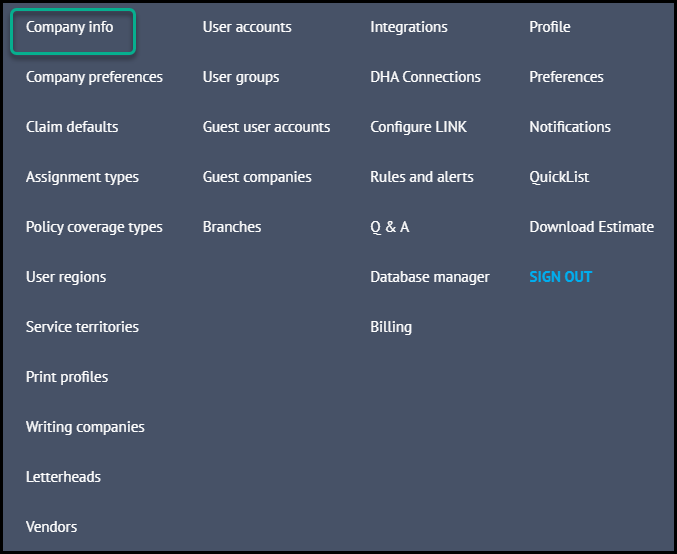
- Click your name in the upper‑right corner and select Company Info.
- On smaller screens, open the hamburger menu (☰) and select Company Info under MY COMPANY.
How to Update Company Information
- Open the Company Info page.
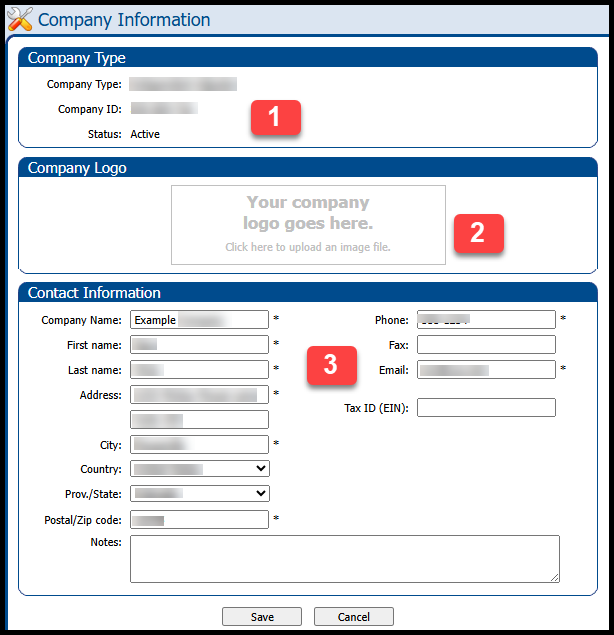
- Review the company details displayed at the top of the page (1):
- Company Type
- Company ID (9 digits)
- Account Status
- Update the editable sections:
- Upload or change your company logo (2)
- Modify contact information (name, address, phone, etc). Add or update your Tax ID, if applicable (3).
- Save your changes, updates take effect immediately.
Notes about Company Type, Country and Region
- The Company Type cannot be changed directly from the Company Info page.
- If your company was registered under the wrong type (e.g., Contractor instead of Independent Adjuster), contact Claims Support to request a change.
- The country/region associated with your account cannot be changed.
- Claims Workspace is region‑specific and tied to local pricing databases.
- If your account was created in the wrong region, you may need to recreate the account in the correct region (for example, Canada vs. United States).
Need Help?
If you require assistance updating company information, changing your company type, or disabling an account created in the wrong region, contact Claims Support.
Was this article helpful?
That’s Great!
Thank you for your feedback
Sorry! We couldn't be helpful
Thank you for your feedback
Feedback sent
We appreciate your effort and will try to fix the article