This article explains how to create new user accounts and how both administrators and users can update existing account information in Claims Workspace.
Who Can Create or Update User Accounts?
- Administrators can create new user accounts and update any user account. They can also reset another user’s password and delete user accounts.
- Individual users can update their own account information (e.g., name, email, phone, password). Some fields may be restricted depending on the user group and permission level.
- If you need to update Company Information please see our Company information update guide.
If you do not see the User Accounts menu or certain fields are unavailable, contact your company administrator.
Create a New User Account (Administrators Only)
Step 1 — Open the User Accounts Menu
- Sign in to Claims Workspace as an Administrator.
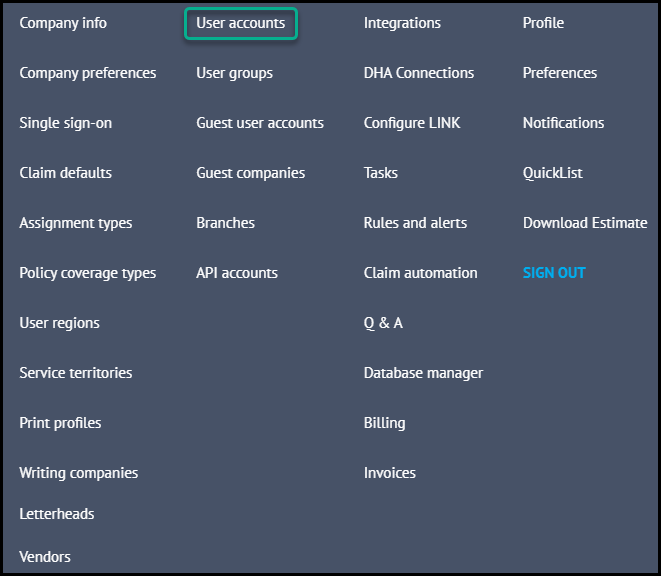
- Click your name in the top‑right corner and select User Accounts.
Step 2 — Create the User
- Click the option to Create a new user (in the top left corner).
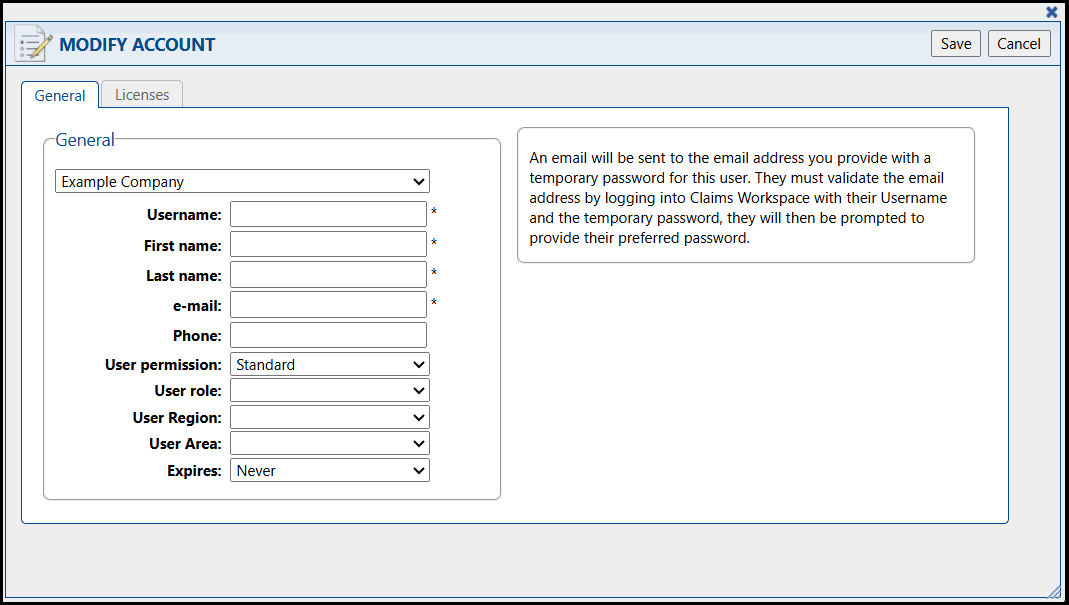
- Enter the user information (first name, last name, email, phone number if desired).
- Assign a User Permission (required), User Role and any applicable permissions.
- Click Save to create the account.
- The User Permission determines the level of permissions for the user's account.
- The User Role offers options to further customize the user's role in your company.
- The User Region and User Area can be customized additionally, however, these options need to be pre-defined in the User Regions section of the Administration menu shown above. See Create User Regions in Claims Workspace™ to learn more.
A welcome email will be sent to the newly created user with login instructions.
See this article if you need to reset your password: Passwords and Blocked Accounts
Update an Existing User Account
Administrators Updating Any User
- Go to User Accounts.
- Select a user to open the Modify Account page.
- Update fields such as:
- Username
- Name
- Email address
- Phone number
- Password
- User permission
- Other profile attributes (depending on permission model)
- Click Save.
Deleting a User (Admins Only)
Administrators may delete user accounts:
- Open User Accounts, select the user, then click Delete.
- Deleting a user revokes claim ownership associated with that account.
- Only administrators can delete user accounts. Customer Support cannot delete users.

Individual Users Updating Their Own Account
- Click your name in the top‑right corner and open Profile.
- On smaller screens, access Profile via the hamburger menu.
- Update editable fields:
- Username
- Name
- Phone
- Password
- Other personal details (available fields depend on user group)
- Click Save.
Some information cannot be modified unless an Administrator makes the change.
Example: users in restricted groups cannot modify their own role or certain account attributes.
FAQs
I don’t see the User Accounts menu.
You may not have the required permissions — contact an administrator.
Can standard users update their own permission?
No — only administrators can modify these.
Can Customer Support delete a user account for us?
No — only company administrators can delete user accounts.
Can Single User Independent Adjusters accounts have more than one user?
No — only one user account is allowed.
Was this article helpful?
That’s Great!
Thank you for your feedback
Sorry! We couldn't be helpful
Thank you for your feedback
Feedback sent
We appreciate your effort and will try to fix the article