This guide is written for Claims Workspace customers and explains how to create and manage User Regions and User Areas. User Regions help control which claims users can see and work on, based on geography or how your organization is structured.
What Are User Regions and User Areas?
- User Region: A grouping used to organize claims and users, often based on geography (for example, province, state, or territory).
- User Area: A sub‑group within a User Region. Areas are optional, but helpful when you want more detailed coverage or routing.
Examples:
- Region: Quebec (Canada)
Areas: Montreal, Laval, Quebec City
- Region: California (USA)
Areas: Los Angeles, San Diego, San Francisco
User Regions and Areas allow Claims Workspace to:
- Show users only the claims they should work on
- Support automatic claim assignment
- Reflect your operational structure
Before You Start
Make sure that:
- You are logged in as an Admin user
- Your organization has decided how regions and areas should be set up
- Users already exist (or will be created after regions are set up)
Step 1: Access User Regions
- Log in to Claims Workspace
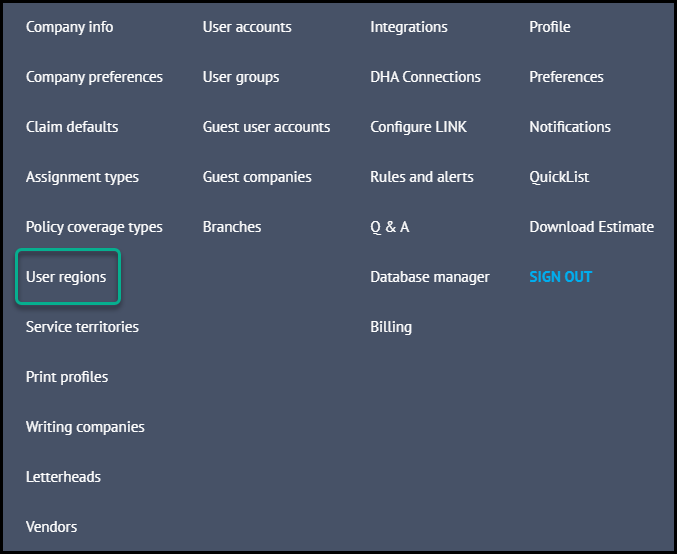
- In the top‑right corner of the screen, click on your name
- In the menu that opens, look under the My Company column
- Click User RegionsYou will be taken to the User Regions management page.
Step 2: Create a New User Region
- On the User Regions page, click Add a new region (top‑left corner)
- Enter a Region Name and Save
- Choose a clear and meaningful name (for example: Quebec, California)
Your new User Region is now created
Step 3: Create User Areas (Optional)
User Areas allow you to further organize a region.
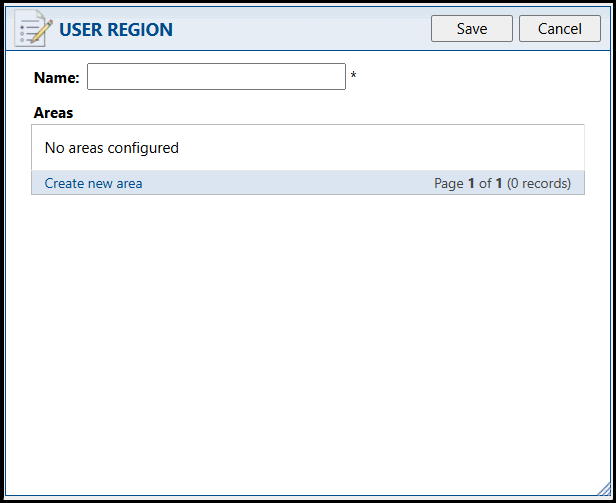
- While on the User Regions page, click Create new area
- Enter an Area Name
- Select the User Region the area belongs to
- Save the area
The User Area is now linked to the selected User Region
Step 4: Assign User Regions and Areas to Users
Once User Regions and Areas are created, they can be used when managing users.
When Creating a New User
- Go to Admin Settings → Users
- Click Create User
- During setup, select the appropriate:
- User Region
- User Area (if applicable)
When Updating an Existing User
- Go to Admin Settings → Users
- Open the user you want to update
- Select or change their:
- User Region
- User Area (if applicable)
Tips and Best Practices
- Keep region and area names simple and easy to understand
- Avoid creating too many regions unless necessary
- Review region assignments regularly, especially when users change roles
- For temporary needs (such as CAT events), create regions that can be reused later
FAQs
Why can’t a user see any claims?
They may not be assigned to a User Region or User Area.
Can a user belong to more than one region?
This depends on your organization’s setup. In most cases, users should belong to one region.
Should I delete old regions?
It is recommended to stop using regions instead of deleting them, to avoid impacting reporting or historical claims.
Was this article helpful?
That’s Great!
Thank you for your feedback
Sorry! We couldn't be helpful
Thank you for your feedback
Feedback sent
We appreciate your effort and will try to fix the article